A code or a QR. The rest happens in your app.
The business shows a 6‑digit code or a QR. You open it in Chewick, read the details and confirm.
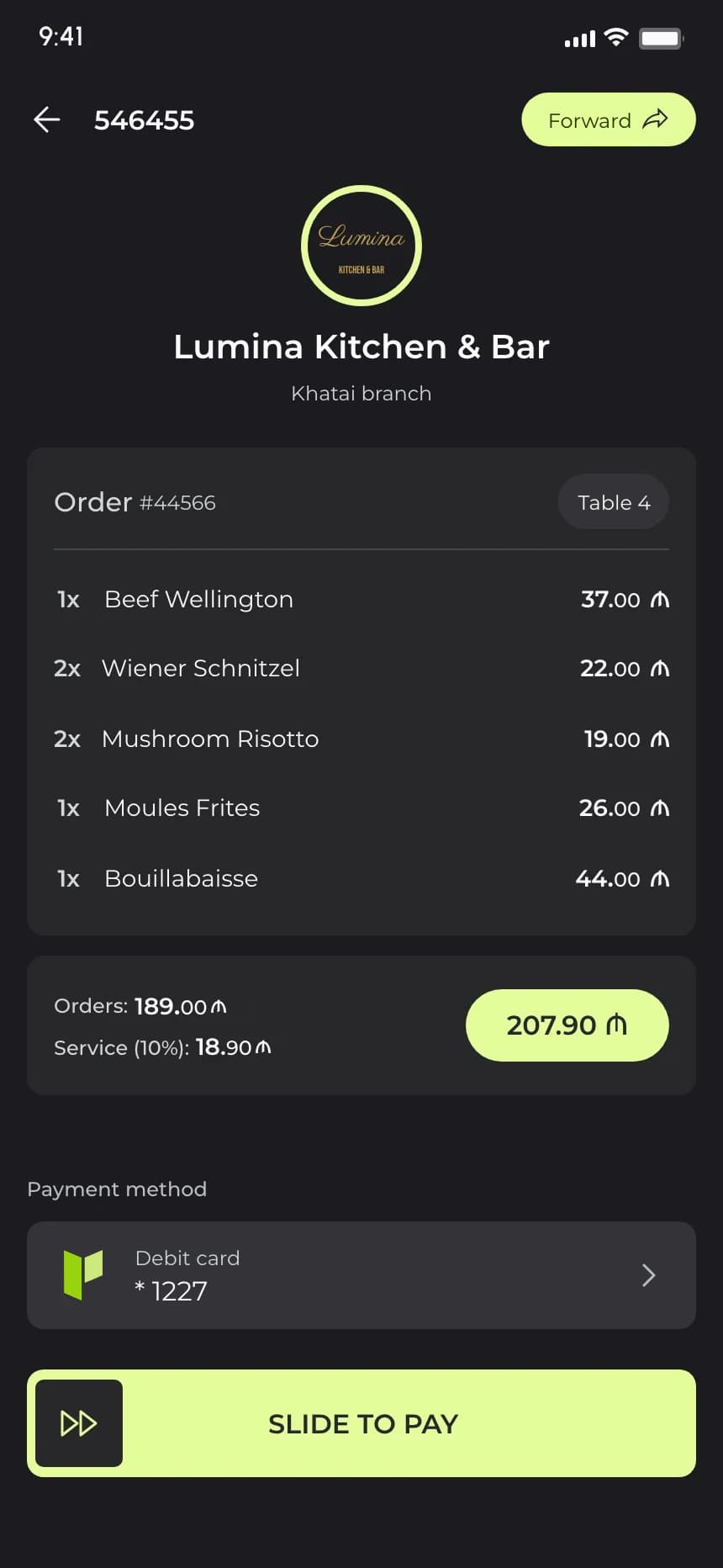
Paying by code, in five moves
Tap Enter code
On the main screen of the app.
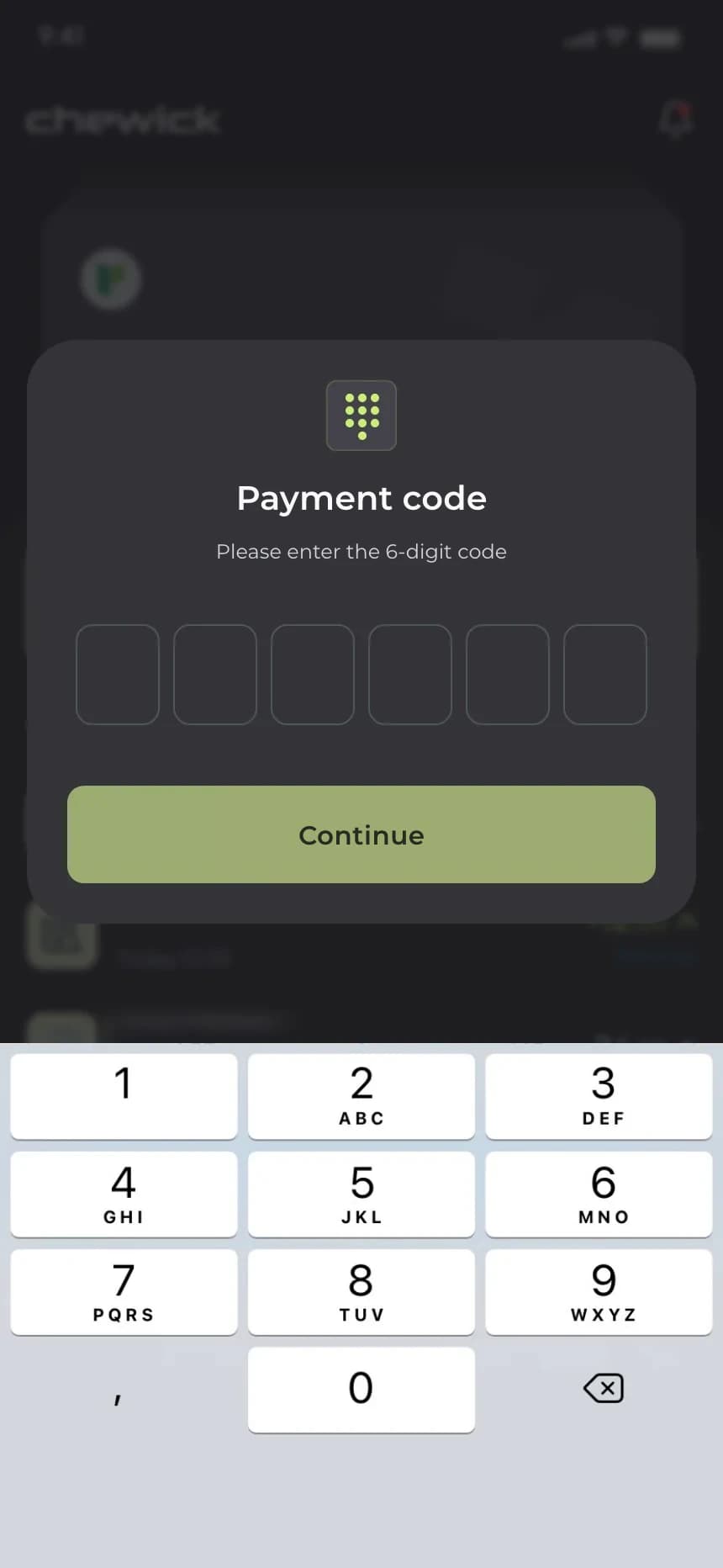
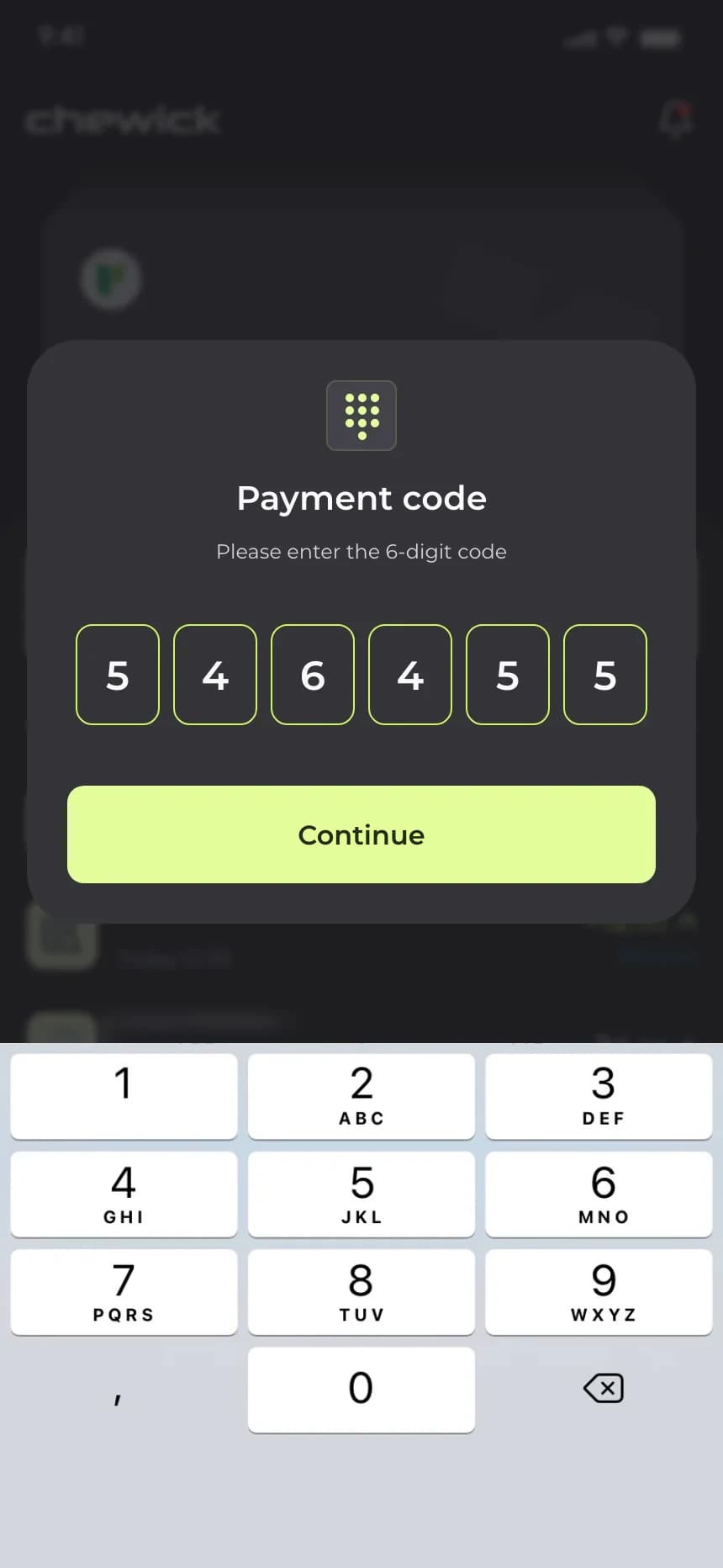
Type the six digits
The code the business shows you, on a screen or read out.
6‑digit code54645500:59Continue
The button becomes active as soon as the sixth digit is in.
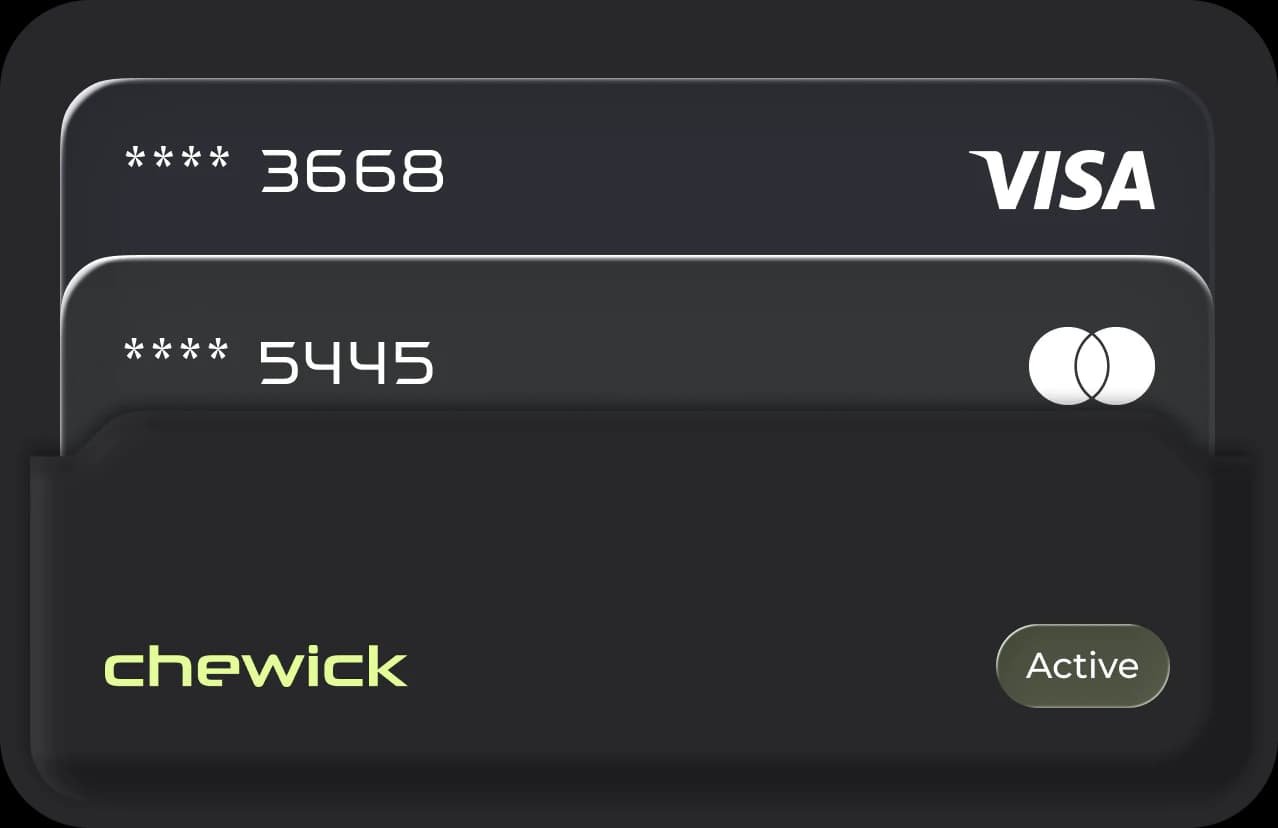
Choose a card
Any card saved in your app.
Slide to pay
One slide of a finger. Confirmed with Face ID, Touch ID or PIN.
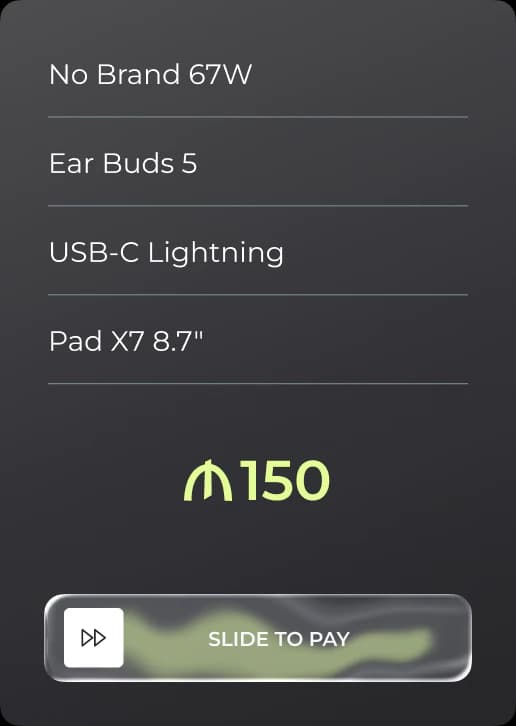
QR is the same payment, scanned
A QR is tied to one order, product or amount. Scan it in Chewick and the same payment details open: business, items, total. Then you confirm, exactly as with a code.
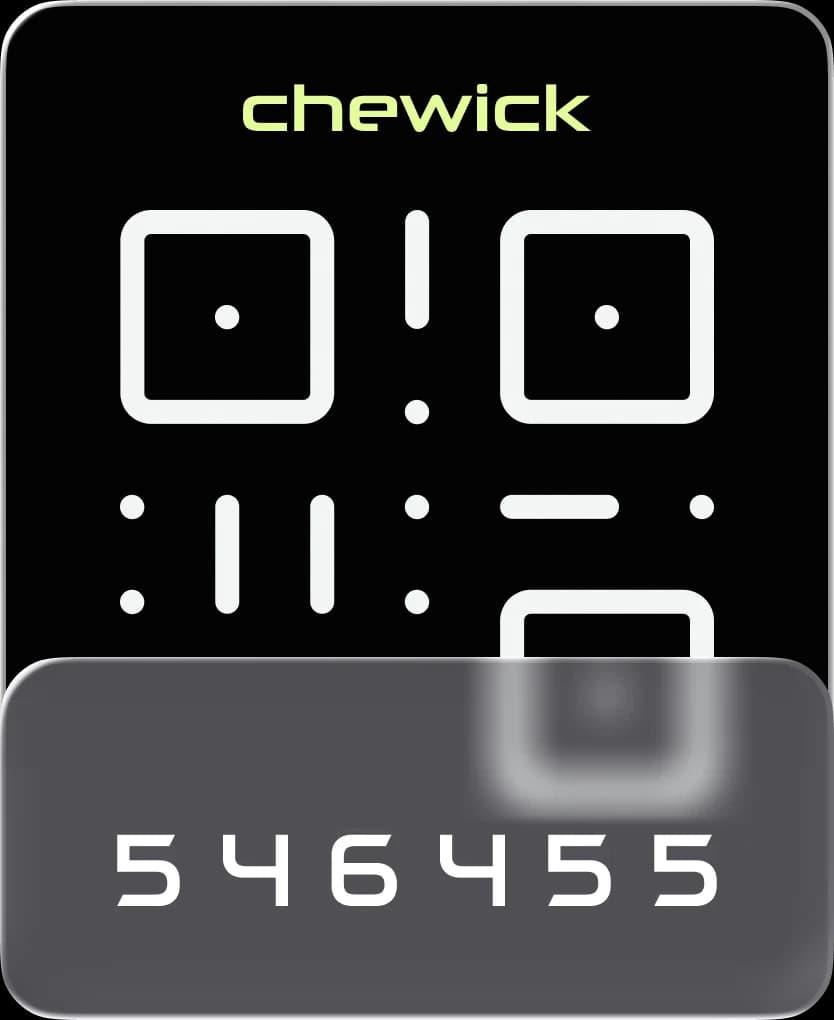
Where the code comes from
Every code is created by a business for one payment.
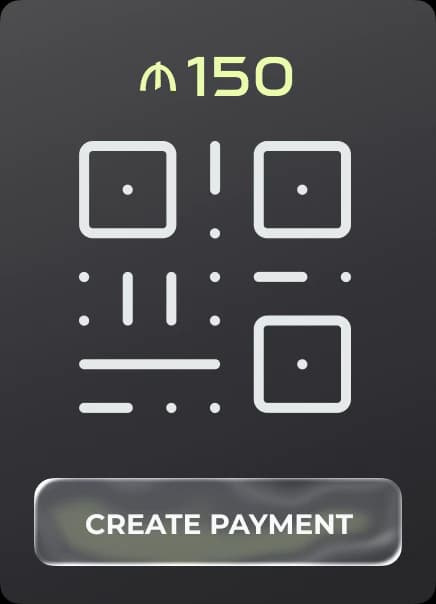
Cashier at the counter
The screen shows a QR, a 6‑digit code and a timer for the order.
Learn more: Cashier at the counterPaylink in a chat
A payment link carries a QR and a code as well. Open the link or type the code.
Learn more: Paylink in a chatCheckout on a website
Choose Chewick as the payment method and the page shows the code and the QR.
Learn more: Checkout on a websiteValid while the timer runs
A code belongs to one payment and stops working when the timer ends or the order is cancelled.