Paylink
Create a payment link with a QR and a 6‑digit code. Send it wherever the conversation is.
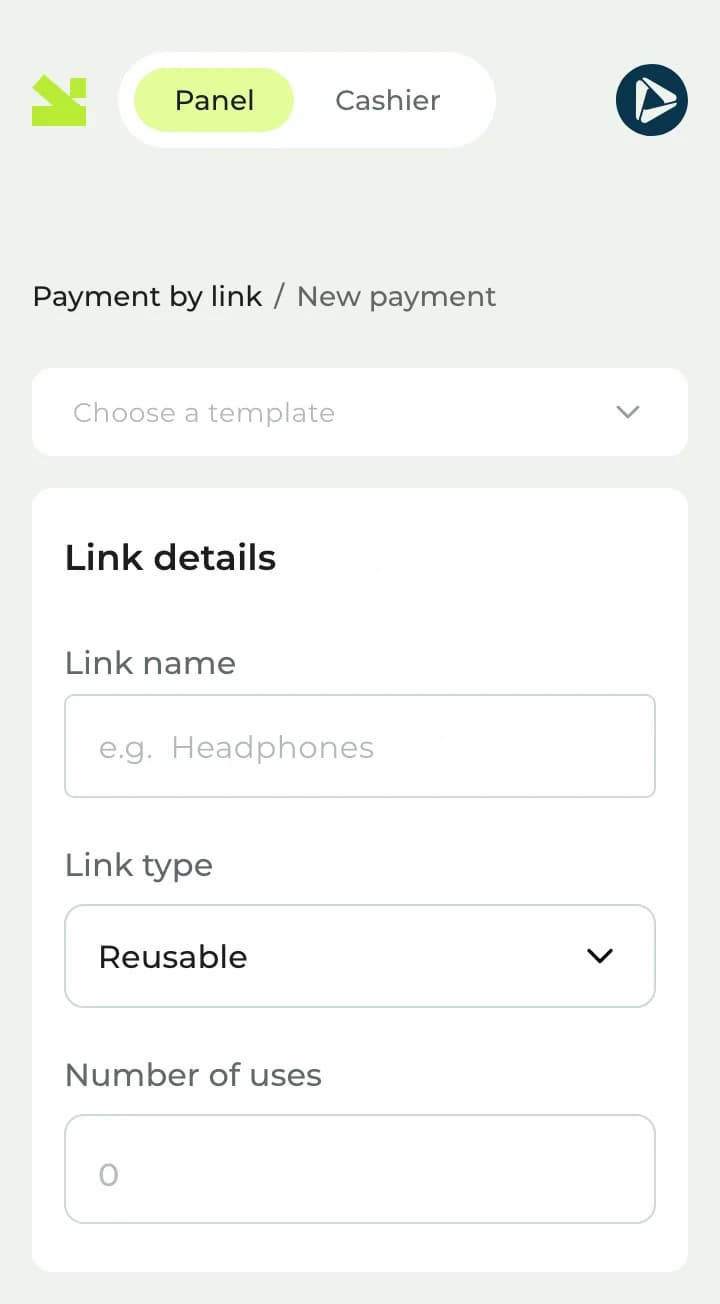
From order to paid, in five steps
Open Paylink
In the Merchant Portal, with the Admin or Paylink role.
Add the items
Description, price and quantity. Or a single amount.
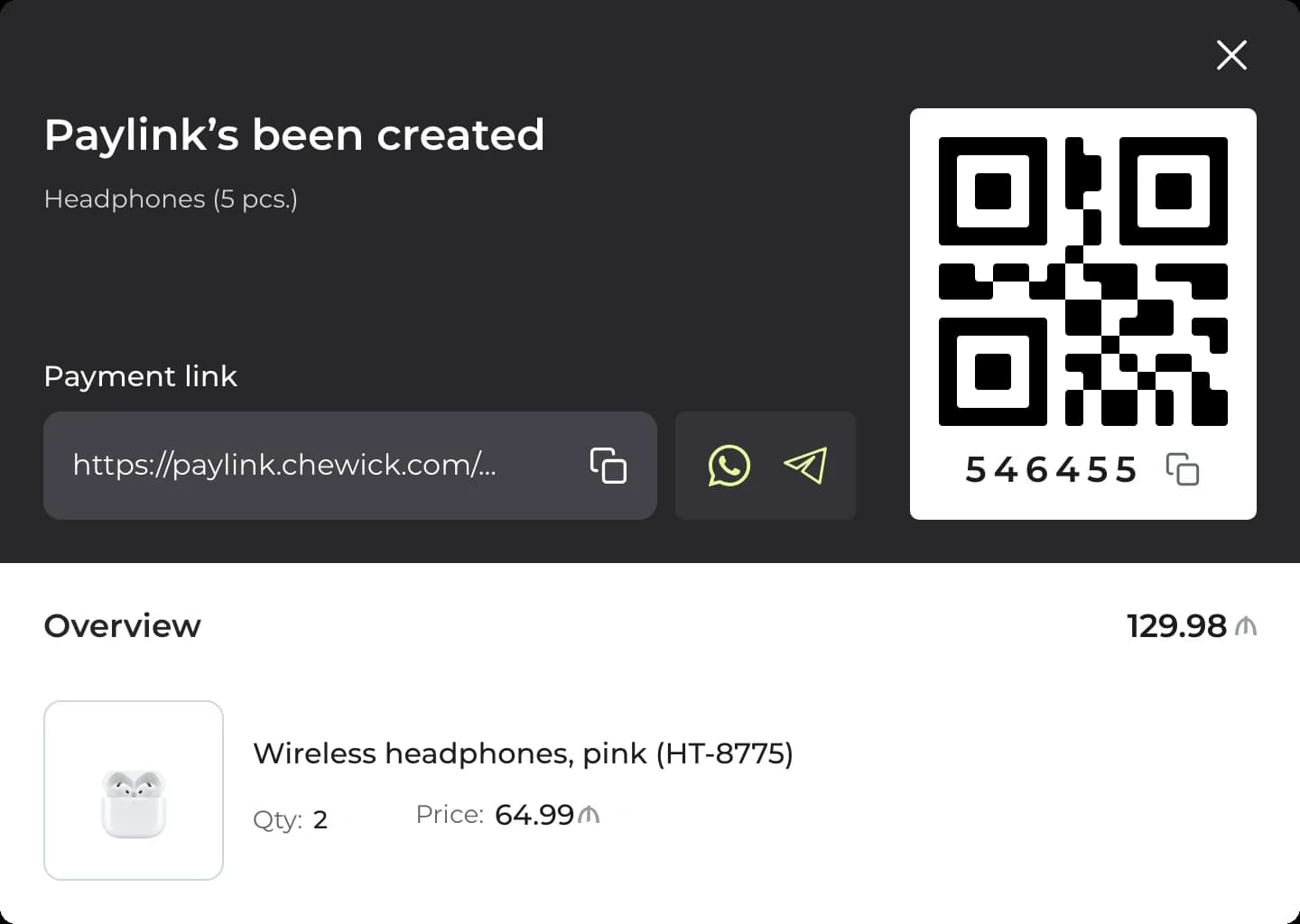
Create the link
Chewick generates a link, a QR and a 6‑digit code at once.
546455Share it
Copy the link, send the QR or read out the code. Or send it to a customer ID.
paylink.chewick.com/p/7f3k2qSee it paid
The payment appears in History with the payer's confirmation.
Headphones (2 pcs.)Paid
Link types and options
One-time link
Used for a single payment, then closed.
Reusable link
Set a number of uses. The same link works until the limit.
Templates
Save the link content and create the next one in a click.
Send to customer
Deliver the payment as a notification to a Chewick user by their customer ID.
Where Paylink fits
- Orders from Instagram, WhatsApp and Telegram.
- Invoices for services and deliveries.
- Pre-orders and deposits agreed in a conversation.
- Any payment where the customer is not in front of you.